הגדרות
 אספקה מהירה
 Incoterms
 סוגי תשלום


 מוצרי Marketplace

מק"ט יצרן # 28009
EXPERIENTIAL ROBOTICS PLATFORM (
SparkFun Electronics

Single Board Computers Raspberry Pi SBC
Up to this point, much of our exploration has focused on the communication structure that makes up the ROS 2 framework. While essential, it might not have felt all that "robotic."
That's about to change. In this tutorial, we begin working with TF2, the ROS 2 library that handles coordinate transformations. TF2 enables robots to understand and convert spatial relationships between various parts of their system. We'll use Python to stay focused on the high-level concepts and demonstrate everything using the Turtlesim simulator. This episode introduces broadcasters and the TF2 listener pattern in preparation for more advanced topics, like simultaneous localization and mapping (SLAM) and robotic manipulation.
The Docker image and code for this series can be found here (including a C++ version of the TF2 examples): https://github.com/ShawnHymel/introduction-to-ros
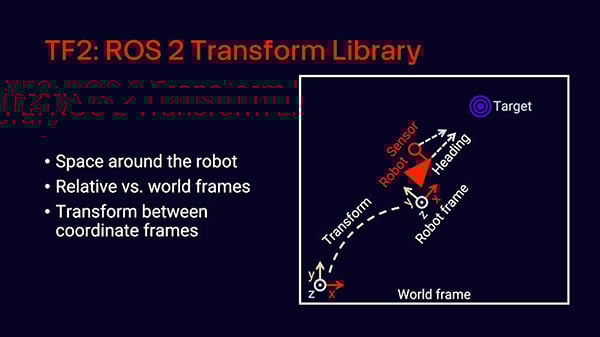
At its core, TF2 manages coordinate frames over time. A frame represents a coordinate system, such as the global "world" frame or a robot's local frame of reference. TF2 allows you to define relationships between these frames and convert positions, orientations, and velocities from one frame to another.
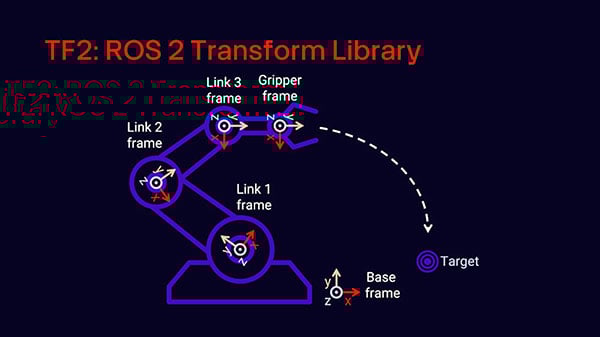
This is essential in robotics. Consider a robot with a manipulator arm. The arm may consist of several joints, each with its own frame. If you want the gripper to move to a specific location in the world, you need to convert that target position into the frame of each joint. TF2 handles this automatically by maintaining a tree of coordinate transforms.
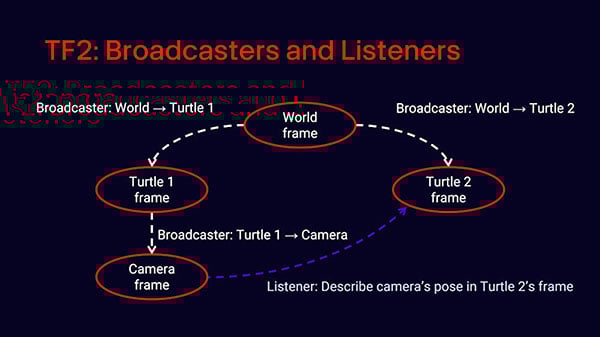
In ROS 2, TF2 is implemented through a combination of broadcasters and listeners. Broadcasters periodically publish the position and orientation (transform) between two frames. Listeners receive and buffer these transforms so they can compute the transform between any two frames at any given moment.
Each part of the robot is defined in terms of its own local coordinate frame, and TF2 allows these parts to communicate spatially with one another. For example, the base of a robot might be the root of all frames, with arms, sensors, and tools existing in nested frames that update dynamically as the robot moves. These frames are typically linked in a tree structure, rooted at a common world or base frame.
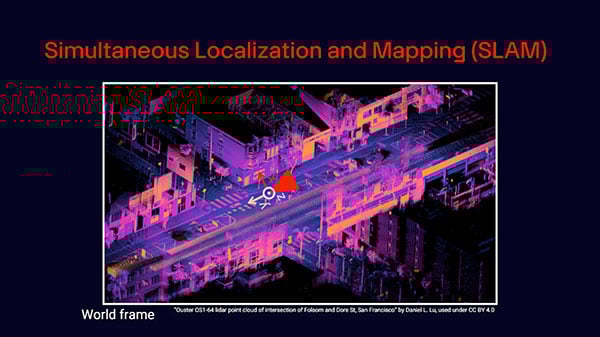
This becomes even more powerful in the context of SLAM (Simultaneous Localization and Mapping), where the robot must both build a map of its environment and determine its own position within that map. In such scenarios, the world frame is not fixed or predefined. Instead, it evolves as the robot explores. TF2 helps keep all the spatial relationships coherent by continuously transforming and synchronizing positions between the robot's local frame and the ever-changing map frame. This flexibility is what makes TF2 indispensable for mobile robotics, autonomous navigation, and manipulation tasks involving multiple articulated components.
To explore TF2 in action, we'll use Turtlesim, a lightweight 2D simulator that emulates basic robot motion. First, open two terminal windows and run the following:
ros2 run turtlesim turtlesim_node
ros2 run turtlesim turtle_teleop_key
Use the arrow keys to move the turtle around. Open a third terminal and echo the turtle's pose topic:
ros2 topic echo /turtle1/pose
You'll see messages containing x, y, and theta, which represent the turtle's position and orientation in radians. We can publish twist commands manually, too:
ros2 topic pub --rate 1 /turtle1/cmd_vel geometry_msgs/msg/Twist "{linear: {x: 0.5}, angular: {z: 1.0}}"
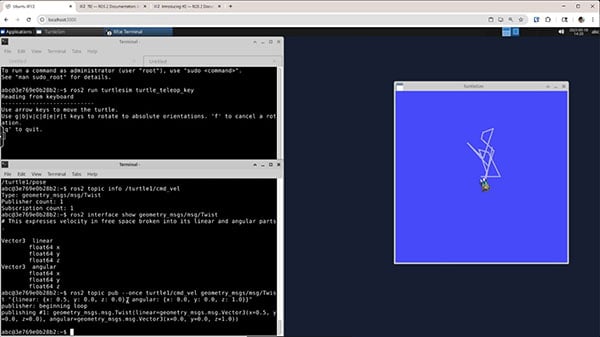
Let’s now write a node that publishes the transform between the world frame and turtle1's frame. ROS 2 does not automatically do this, so we need to write a broadcaster that listens to the /turtle1/pose topic and sends out TF2 transforms.
Create a file util.py inside your Python package (e.g., my_py_pkg) with a helper function to convert Euler angles to quaternions:
import math

def euler_to_quaternion(roll, pitch, yaw):
    """Convert Euler angles (radians) to quaternion (x, y, z, w)"""

    # Compute half-angles
    cy = math.cos(yaw * 0.5)
    sy = math.sin(yaw * 0.5)
    cp = math.cos(pitch * 0.5)
    sp = math.sin(pitch * 0.5)
    cr = math.cos(roll * 0.5)
    sr = math.sin(roll * 0.5)

    # Compute quaternion components
    qw = cr * cp * cy + sr * sp * sy
    qx = sr * cp * cy - cr * sp * sy
    qy = cr * sp * cy + sr * cp * sy
    qz = cr * cp * sy - sr * sp * cy

    return (qx, qy, qz, qw)
Now create a file named tf2_turtle_broadcaster.py in the same package:
import rclpy
from rclpy.executors import ExternalShutdownException
from rclpy.node import Node

from geometry_msgs.msg import TransformStamped
from turtlesim.msg import Pose

import tf2_ros

from my_py_pkg import util

class TurtleTFBroadcaster(Node):
    """Continuously broadcast transform from world to turtle frame"""

    def __init__(self):
        """Constructor"""
        super().__init__("turtle_tf_broadcaster")

        # Declare parameters
        self.declare_parameter('child', "turtle1")
        self.declare_parameter('parent', "world")

        # Set to attributes
        self._child = self.get_parameter('child').value
        self._parent = self.get_parameter('parent').value

        # Subscribe to child turtle pose
        self._subscription = self.create_subscription(
            Pose,
            "/" + self._child + "/pose",
            self._broadcast,
            10
        )

        # Create a transform broadcaster
        self._broadcaster = tf2_ros.TransformBroadcaster(self)

        # Say we've started
        self.get_logger().info(
            f"Transform broadcaster started: {self._parent} to {self._child}"
        )

    def _broadcast(self, msg):
        """Broadcast turtle pose as a transform"""

        # Construct broadcast message header
        t = TransformStamped()
        t.header.stamp = self.get_clock().now().to_msg()
        t.header.frame_id = self._parent
        t.child_frame_id = self._child

        # Add translation (position) info
        t.transform.translation.x = msg.x
        t.transform.translation.y = msg.y
        t.transform.translation.z = 0.0

        # Add rotation info
        q = util.euler_to_quaternion(0.0, 0.0, msg.theta)
        t.transform.rotation.x = q[0]
        t.transform.rotation.y = q[1]
        t.transform.rotation.z = q[2]
        t.transform.rotation.w = q[3]

        # Send out transform
        self._broadcaster.sendTransform(t)

def main(args=None):
    """Main entrypoint"""

    # Initialize and run node
    try:
        rclpy.init()
        node = TurtleTFBroadcaster()
        rclpy.spin(node)
    except (KeyboardInterrupt, ExternalShutdownException):
        pass
    finally:
        if node is not Node:
            node.destroy_node()
        if rclpy.ok():
            rclpy.shutdown()

if __name__ == '__main__':
    main()
Also, update package.xml to include the required dependencies:
<depend>rclpy</depend>
<depend>geometry_msgs</depend>
<depend>turtlesim</depend>
<depend>tf2_ros</depend>
Update your setup.py with the entry point:
'console_scripts': [
    ...

    “tf2_turtle_broadcaster = my_py_pkg.tf2_turtle_broadcaster:main”,
]
Build and run the broadcaster:
colcon build --packages-select my_py_pkg
source install/setup.bash
ros2 run my_py_pkg tf2_turtle_broadcaster
With Turtlesim, teleop, and the broadcaster running, you can now view the transform using the TF2 command-line tool:
ros2 run tf2_ros tf2_echo world turtle1
This shows the translation (position) and rotation (orientation in quaternion form) of turtle1 relative to the world frame. The output includes the 4x4 transformation matrix used internally for chaining multiple transforms.
To visualize the full TF2 frame tree, run:
ros2 run tf2_tools view_frames
This generates a PDF file showing all the frames and their relationships. Check your workspace for the generated frames.pdf.
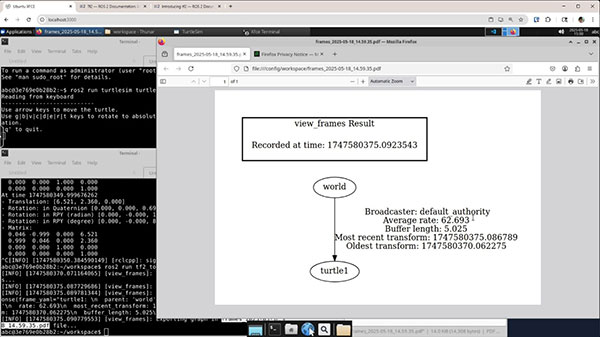
In this tutorial, you learned how TF2 enables spatial reasoning in ROS 2 by transforming coordinates between reference frames. We introduced the core concepts of frames, transforms, broadcasters, and listeners. You also built a Python-based TF2 broadcaster that tracks the position and orientation of a Turtlesim robot relative to the world.
Understanding TF2 is essential for more advanced robotics topics like manipulation and SLAM. In the next episode, we'll extend this example to include multiple frames and implement a listener that uses this information to guide another turtle's motion based on relative positioning.
TF2 makes robotic systems modular and easier to reason about spatially, removing the need for hand-coded coordinate math. As your robot's complexity grows, TF2 will become an indispensable tool in your ROS 2 toolkit.
In the next tutorial, we will add a listener node to start using the transforms and create a fun simulation where a second turtle automatically follows our first.
Stay tuned!